Connect KORONA.entry
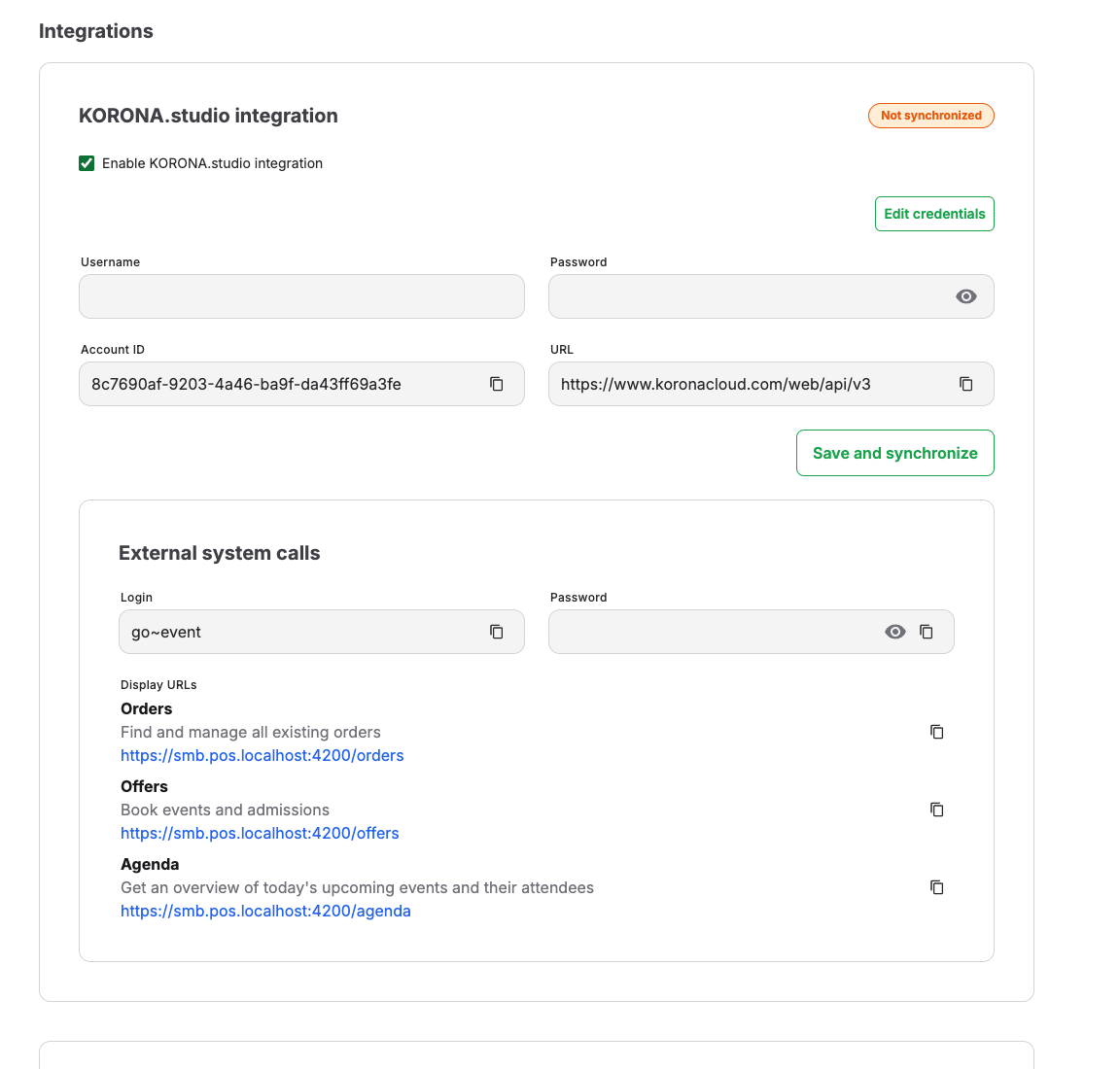
Use this to connect KORONA Event to a KORONA.entry server so that sold tickets can be scanned at gates and turnstiles, and to keep the connection healthy after credential changes. KORONA Event does not scan tickets itself; scanning is done by KORONA.entry hardware.
Before you start
Confirm:
- you have the URL, username, and password of the KORONA.entry server
- you have back-office access to Admin > Integrations
- you know your KORONA Event account's time zone
Steps
- In the back office, open Admin > Integrations.
- In the KORONA.entry Integration section, enter Username, Password, and URL.
- Select Save and synchronize. The message "KORONA.entry integration synchronized successfully" confirms that KORONA Event can reach the entry server with these credentials.
- Set up entry webhooks and the event receiver in KORONA.entry so scan results flow back to KORONA Event. Follow Set up scanners and entry hardware.
How data flows between the systems
- After a ticket is sold, KORONA Event activates it in KORONA.entry so the gates recognize it.
- Scan results, ticket creations, and ticket updates in KORONA.entry are sent back to KORONA Event through entry webhooks and recorded as entry events on the matching ticket, including denied scans and the reason.
Personalized tickets
When an offer asks for the ticket holder's name and photo, KORONA Event adds them to the KORONA.entry ticket. To set this up, see Sell personalized tickets with the holder's name and photo.
| Ticket detail in KORONA.entry | Where it comes from |
|---|---|
| First name and last name | The attendee's First name and Last name answers. For personalized tickets, a missing name answer remains blank. |
| Photo | The attendee's ID Photo answer, uploaded as the ticket image. Without an answer, the ticket has no photo. |
| Customer number | The purchaser's KORONA customer number, unless your account is set up to create a separate customer for each ticket holder (see below). |
The name and photo are sent when the ticket is activated. When staff or the customer add or change a name or photo answer later, the KORONA.entry ticket is updated automatically. The POS does not ask for ticket holder details during sale. Personalized tickets remain unnamed until those details are supplied; adding them in the back office updates the ticket. Tickets without holder-identity questions continue to use the purchaser's name.
Use Edit response to correct a name or replace a photo. Saving an empty optional name answer clears that part of the personalized ticket's name. Required answers must be completed. Deleting an entire response does not synchronize the deletion to KORONA.entry, and removing a photo does not clear the remote photo.
If your account creates separate customers for ticket holders, a ticket whose holder name differs from the purchaser gets its own customer with the purchaser's email address. You find these customers under Sales > Customers; their Customer comment reads "Created from original customer number … for a personalized ticket.", and External reference contains the purchaser's customer number.
Credential changes
When the password or username is changed on the KORONA.entry server, KORONA Event requests start failing with authorization errors, ticket activations queue up, and freshly sold tickets stop reaching the gates.
- Update Username, Password, and URL in the KORONA.entry Integration section.
- Select Save and synchronize. This resumes pending ticket activations and delayed scan updates.
- Sell or pick one test ticket and confirm it scans at a gate.
When you connect a different KORONA account, KORONA Event generates a new webhook username and password for that account. In Entry webhooks, select Generate entry webhook values, then create or replace the event receiver in the newly connected KORONA.entry account with those exact values. The event receiver for the previous account can no longer send events to this KORONA Event account.
Expected result
New tickets are accepted at the gates shortly after purchase, and every scan appears as an entry event on the ticket in the back office attendee detail.
Troubleshooting
| Problem | What to check |
|---|---|
| Synchronize fails with an authorization error | Username and Password match the current KORONA.entry credentials, and the URL points to the right server. |
| Fresh tickets are unknown at the gate | Check whether the last synchronization succeeded. After correcting the credentials, select Save and synchronize to release queued activations. |
| Scans do not appear in KORONA Event | Check the event receiver configuration and whether the entry webhooks show a recent received event. After correcting the connection or missing ticket data, select Synchronize to retry stored scan events. If you changed the connection settings, select Save and synchronize instead. |
| Valid tickets rejected near midnight or date edges | The KORONA.entry server time zone matches your account time zone. |